Getting locked out because your smart lock stopped working is frustrating. The good news? Most smart lock issues stem from dead batteries, connectivity problems, or app glitches, all fixable within minutes. This guide walks you through proven troubleshooting steps to regain access quickly and prevent future lockouts.
Why Is Your Smart Lock Not Working?
Smart locks fail for several reasons. Understanding the root cause helps you fix the problem faster and avoid calling for help unnecessarily.
Dead or Low Battery
According to Consumer Reports testing data, over 60% of smart lock malfunctions are battery-related. Most smart locks run on AA or CR123A batteries that last 6-12 months. When power drops too low, the lock won’t respond to commands or may lock you out entirely.
Check for low battery warnings in your smart lock app. Many models send notifications weeks before complete failure. If your lock feels sluggish or makes unusual sounds, replace the batteries immediately.
Connectivity Issues
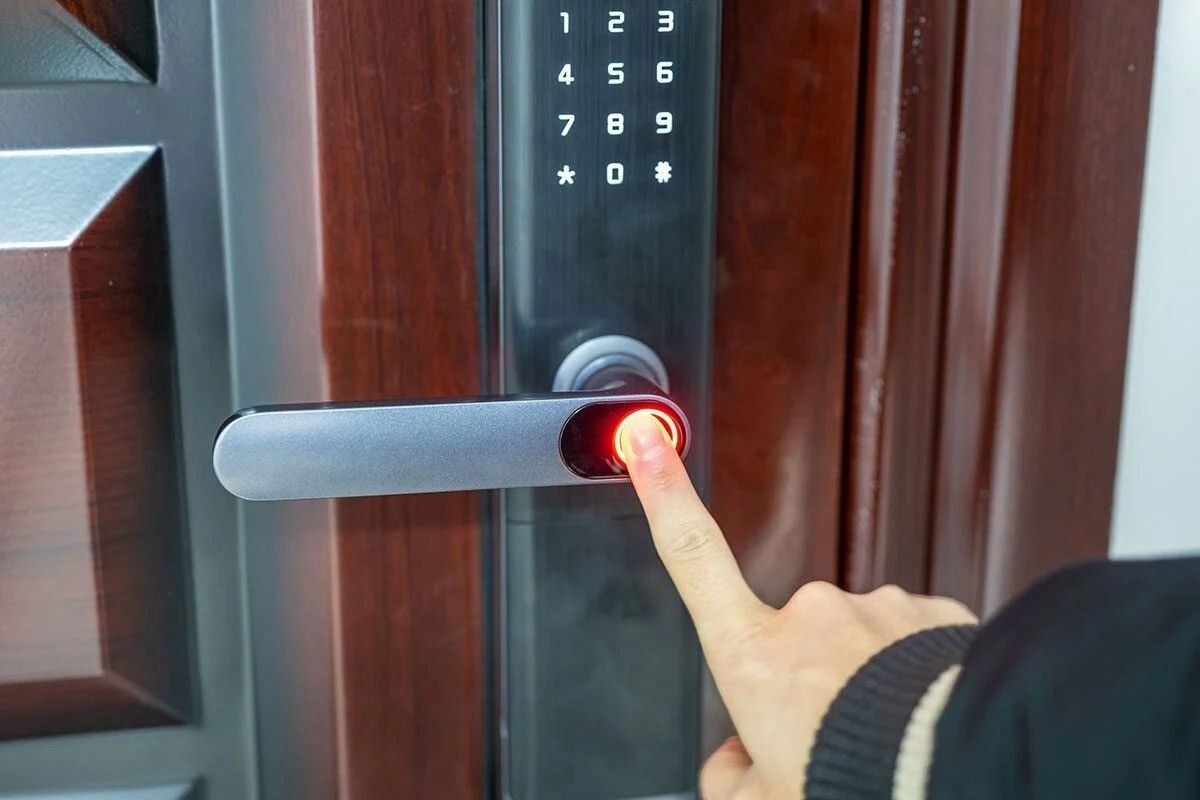
Smart locks rely on Bluetooth, Wi-Fi, or Z-Wave to communicate with your phone or hub. Signal interference from thick walls, distance, or network outages can prevent your lock from receiving unlock commands.
Move closer to the lock and ensure your phone’s Bluetooth is active. If you’re using Wi-Fi, check that your home network is functioning properly. Restarting your router often resolves temporary connectivity problems.
App or Software Glitches
Smart lock apps occasionally freeze, crash, or fail to sync with the lock. Outdated firmware can also cause compatibility issues, especially after phone operating system updates.
Force close the app and reopen it. If that doesn’t work, check for app updates in your device’s app store. Many manufacturers release patches to fix bugs and improve performance.
Mechanical Jamming
Even smart locks have physical components that can jam. Dirt, debris, or misaligned door frames can prevent the bolt from retracting, leaving you locked out despite correct digital commands.
Inspect the lock for visible obstructions. Gently clean around the bolt with compressed air or a soft brush. If the door frame has shifted, you may need professional adjustment.
How to Fix a Smart Lock That Won’t Unlock
When locked out of your smart lock, follow these troubleshooting steps in order. Most issues resolve within minutes using these methods.
Step 1: Use the Manual Override Key
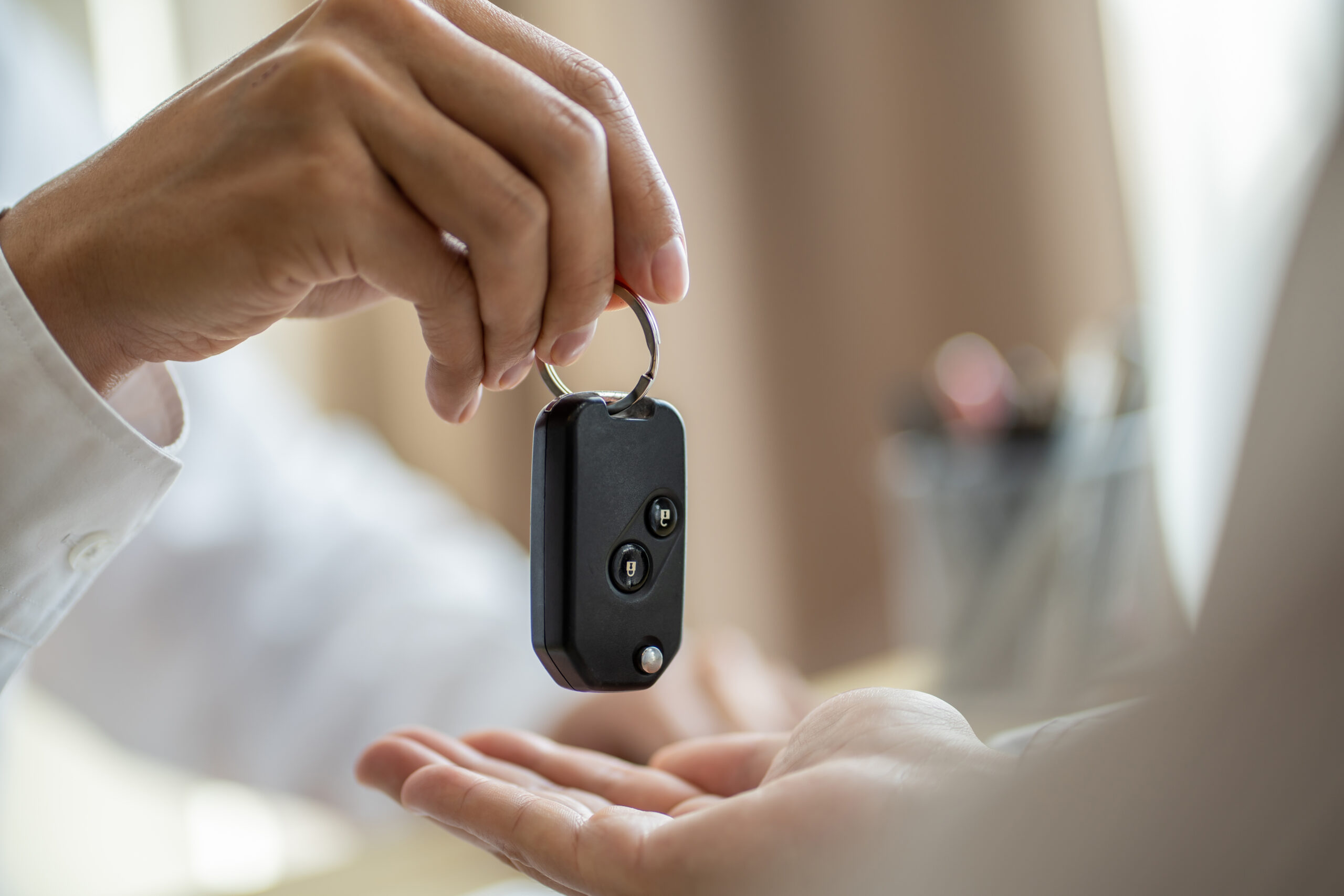
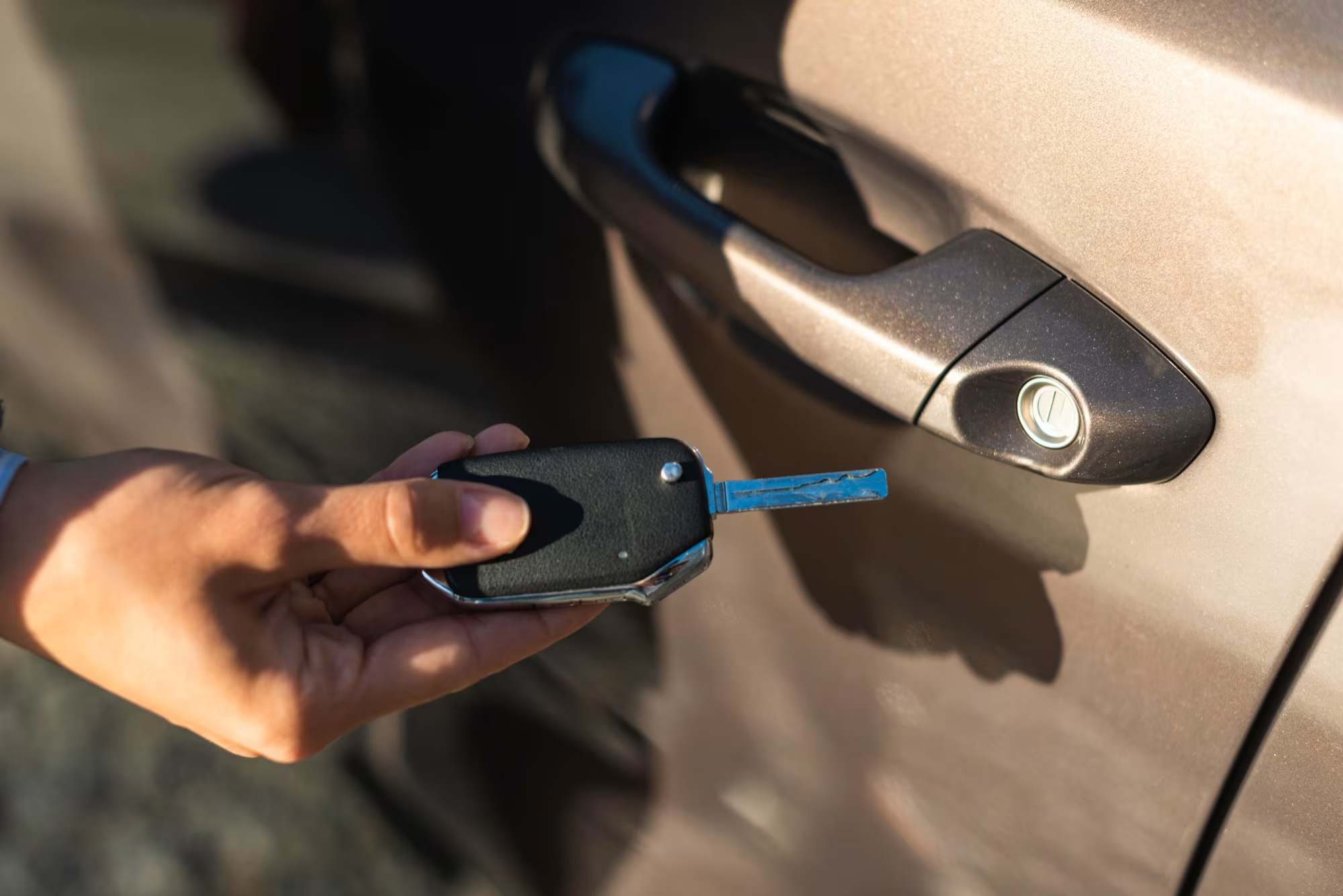
Every smart lock includes a physical keyhole for emergencies. Locate your backup key and insert it into the cylinder below the keypad or touchscreen.
Turn the key as you would with a traditional lock. This bypasses all electronic components and grants immediate entry. If you’ve misplaced your key, consider keeping a spare with a trusted neighbor or in a secure lockbox.
Step 2: Replace the Batteries
If the manual key isn’t accessible, try replacing the batteries from outside. Many smart locks allow external battery access through a panel on the front.
Remove the battery cover and insert fresh batteries. The lock should power on immediately. If you don’t have replacement batteries, some models accept emergency power from a 9V battery held against specific terminals.
Step 3: Reset Your Smart Lock
When software issues cause lockouts, a factory reset often restores functionality. The reset process varies by brand, but most involve pressing a specific button combination.
Consult your lock’s manual for exact instructions. Common methods include holding the reset button for 10-15 seconds or entering a master code. Note that resetting erases all user codes and settings, requiring full reconfiguration.
Step 4: Check Your Smart Lock App Connection
Open your smart lock app and verify it’s connected to the lock. Look for status indicators showing online/offline status or battery levels.
If the app shows “disconnected,” enable Bluetooth and move within 10 feet of the lock. For Wi-Fi models, ensure your home network is active. Some locks require you to manually reconnect after power loss.
Step 5: Troubleshoot Bluetooth or Wi-Fi Issues
Wireless interference disrupts smart lock communication. Turn off nearby devices that might cause signal conflicts, such as microwaves or baby monitors.
Restart your smartphone and toggle airplane mode on and off. This refreshes all wireless connections. If using a smart home hub, power cycle it by unplugging for 30 seconds.
Step 6: Inspect for Physical Damage
Examine the lock for cracks, water damage, or loose components. Extreme weather can warp door frames, preventing proper bolt alignment.
If you notice physical damage, avoid forcing the lock. Attempting to pry it open can cause permanent damage and void warranties. Instead, contact a professional locksmith for safe entry.
When to Call a Professional Locksmith
Some smart lock problems require expert intervention. Knowing when to call for help prevents further damage and ensures safe entry.
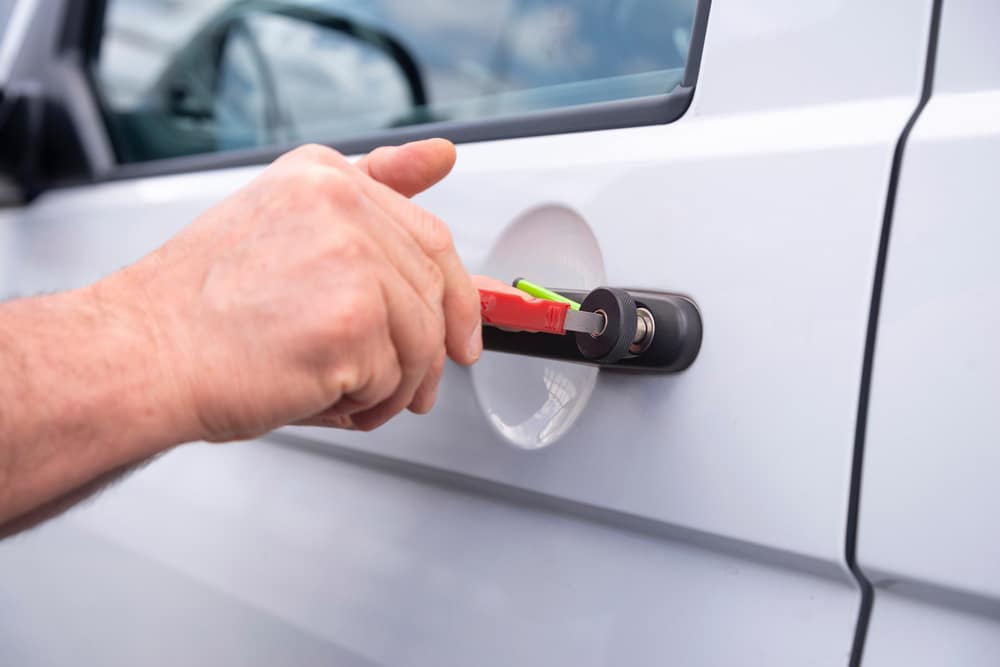
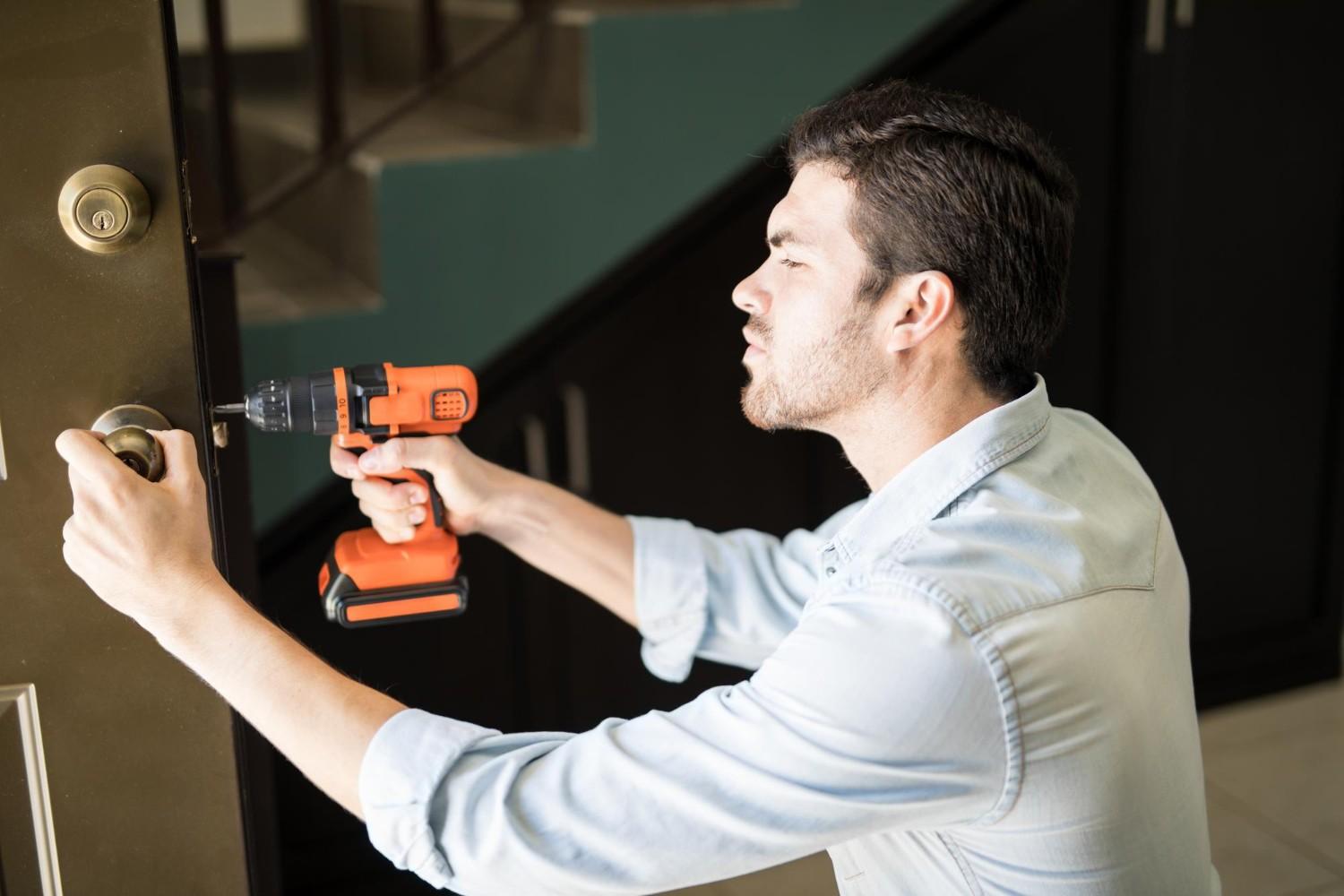
If you’ve exhausted all troubleshooting steps without success, it’s time to call a locksmith. Professionals have specialized tools to unlock smart locks without damage. They can also diagnose underlying issues like faulty circuits or broken motors.
Key It Locks offers smart lock servicing in Ottawa with 24/7 emergency response. Our technicians are trained on all major smart lock brands and can repair or replace malfunctioning units on-site.
If your lock repeatedly fails despite fresh batteries and good connectivity, the internal electronics may be defective. Professional assessment can determine whether repair or replacement is more cost-effective.
Preventing Future Smart Lock Malfunctions
Proactive maintenance keeps your smart lock reliable and prevents unexpected lockouts. Follow these best practices to extend your lock’s lifespan.
Replace Batteries Regularly
Don’t wait for low battery warnings. Mark your calendar to replace batteries every 6-8 months, even if the lock seems fine. This prevents sudden failures and ensures consistent performance.
Keep spare batteries in an easily accessible location. Some homeowners store them in a weatherproof container near the front door for emergencies.
Update Firmware and Apps
Manufacturers release firmware updates to fix bugs and add features. Enable automatic updates in your smart lock app or check monthly for new versions.
Outdated firmware can cause compatibility issues with newer smartphones or smart home systems. Staying current prevents many common problems.
Clean and Lubricate the Lock
Dust and grime accumulate in lock mechanisms over time. Clean your smart lock quarterly using a soft, dry cloth. Avoid harsh chemicals that can damage electronic components.
Apply graphite lubricant recommended by lock manufacturers to the keyhole and bolt annually. This reduces friction and prevents mechanical jamming. Never use oil-based lubricants, which attract dirt.
Test the Manual Override Key
Verify your physical key works at least once per month. This ensures you have a reliable backup if electronics fail. If the key feels stiff or doesn’t turn smoothly, have the cylinder serviced.
Store your backup key in a secure but accessible location. Consider giving a spare to a trusted family member or neighbor.
Monitor for Connectivity Issues
Pay attention to how quickly your lock responds to commands. Increasing delays often signal developing problems. Address connectivity issues promptly before they cause lockouts.
If you experience frequent disconnections, consider upgrading your Wi-Fi router or adding a signal booster near the lock.
Understanding Smart Lock Battery and Power Issues
Battery management is critical for smart lock reliability. Different lock types have varying power requirements and failure modes.
Most smart locks use 4-6 AA batteries or 2 CR123A lithium batteries. Lithium batteries perform better in extreme temperatures but cost more. Alkaline batteries are cheaper but may leak if left too long.
When batteries die, some locks automatically unlock for safety, while others remain locked. Check your model’s specifications to understand its default behavior during power loss.
External power ports allow emergency unlocking using a 9V battery. Locate this port on your lock’s exterior and keep a 9V battery in your car or wallet for emergencies.
For comprehensive guidance on power-related issues, read our article on smart lock battery and power issues to understand how different models handle outages.
What to Do If You’re Locked Out in Ottawa
If you’re locked out and can’t resolve the issue yourself, immediate professional help is available. Key It Locks provides 24/7 emergency lockout services throughout Ottawa and surrounding areas.
Our mobile locksmiths arrive within 30 minutes equipped to handle all smart lock brands. We use non-destructive entry methods that preserve your lock and door integrity.
For step-by-step guidance on handling lockout emergencies, visit our guide on what to do if you’re locked out in Ottawa for immediate action steps and local resources.
FAQs
Why won’t my smart lock unlock even with fresh batteries?
Fresh batteries don’t always solve the problem. Check for firmware updates, reset the lock, or inspect for mechanical jamming. If issues persist, internal electronics may be faulty and require professional repair.
Can I reset my smart lock from outside when locked out?
Most smart locks require interior access for full resets. However, some models allow partial resets using external buttons or the mobile app. Consult your manufacturer’s emergency procedures for specific instructions.
How long do smart lock batteries typically last?
Smart lock batteries last 6-12 months depending on usage frequency, battery type, and environmental conditions. Locks with Wi-Fi drain batteries faster than Bluetooth-only models due to constant connectivity requirements.
Will my smart lock work during a power outage?
Yes, smart locks operate on battery power, not household electricity. They function normally during outages. However, Wi-Fi-dependent features may be unavailable if your router loses power without battery backup.
What should I do if my smart lock app won’t connect?
First, ensure Bluetooth or Wi-Fi is enabled on your phone. Move closer to the lock and restart both your phone and the app. If problems continue, reinstall the app or check for firmware updates.
Can extreme weather damage my smart lock?
Extreme temperatures can affect battery performance and cause mechanical expansion or contraction. Most quality smart locks are rated for -20°F to 140°F. Protect your lock with a weatherproof cover in harsh climates.
How do I know if my smart lock needs professional repair?
If troubleshooting steps fail, the lock makes grinding noises, or it repeatedly malfunctions despite maintenance, professional assessment is needed. Persistent connectivity issues or physical damage also warrant expert evaluation.
Final Thoughts
Smart lock malfunctions are usually simple to fix with basic troubleshooting. Start by replacing batteries, checking connectivity, and using your manual override key. Regular maintenance, including battery replacement, firmware updates, and cleaning, prevents most lockouts.
When DIY solutions fail, don’t risk damaging your lock with forced entry. Professional locksmiths have the expertise and tools to resolve complex issues safely. Keep emergency contact information handy and maintain a backup entry method for peace of mind.
By understanding common smart lock problems and their solutions, you’ll minimize lockout frustrations and enjoy the convenience and security these devices offer.